Training mode in the demo: missions, points, certificate
How to use the training mode in the GYMS-CRM demo: six roles, 100-point missions, penalties for mistakes, pause, badges, summary and a PNG certificate.
For roles:OwnerAdministratorManagerTrainerCashierAccountantOperator
Screen overview in words
What this page covers: How to enter the training mode · A role and a 100-point programme · A mission, points and mistakes · Summary and certificate
The training mode lives inside the demo. When you open the demo, the CRM asks how you want to start. There are two cards: "Training" and "Demo". Choose "Training" and the system opens a separate clean database that does not mix with the ordinary demo.
Next you choose who you are on the team. There are six roles: administrator, owner, trainer, cashier, accountant and operator. Each has its own programme, and each programme is worth exactly one hundred points.
A programme consists of missions. A mission gives you a situation from a real day at the gym: open a shift, sell a membership, close the till. You work in the real CRM interface, and the system watches what appears in the data. A correct step adds points. A mistake takes off one to four points and at once explains why it is better not to do it that way.
If you get distracted, press "Pause". The mission waits, even after the page is reloaded. Finished a mission with mistakes? Take it again: the best result counts.
At the end open "Summary and certificate", type your name and download the certificate picture.
On this page
/demo/Who it is for: an employee or an owner who wants to learn the CRM on invented data, and a manager who prepares a new person for work.
What the training mode is
The training mode is part of the GYMS-CRM demo. It is a game with missions: you do typical gym tasks, and the system awards points for correct actions and takes them off for mistakes. The data sits in a separate training database in your browser, so a real club and the ordinary demo stay untouched. The mode complements the tours inside the CRM: tours show where a button is, and missions check that you carried the task through to a result. An owner who sets up a real club will find the business setup wizard useful: it explains the system rules and CRM sections step by step.
How to enter the training mode
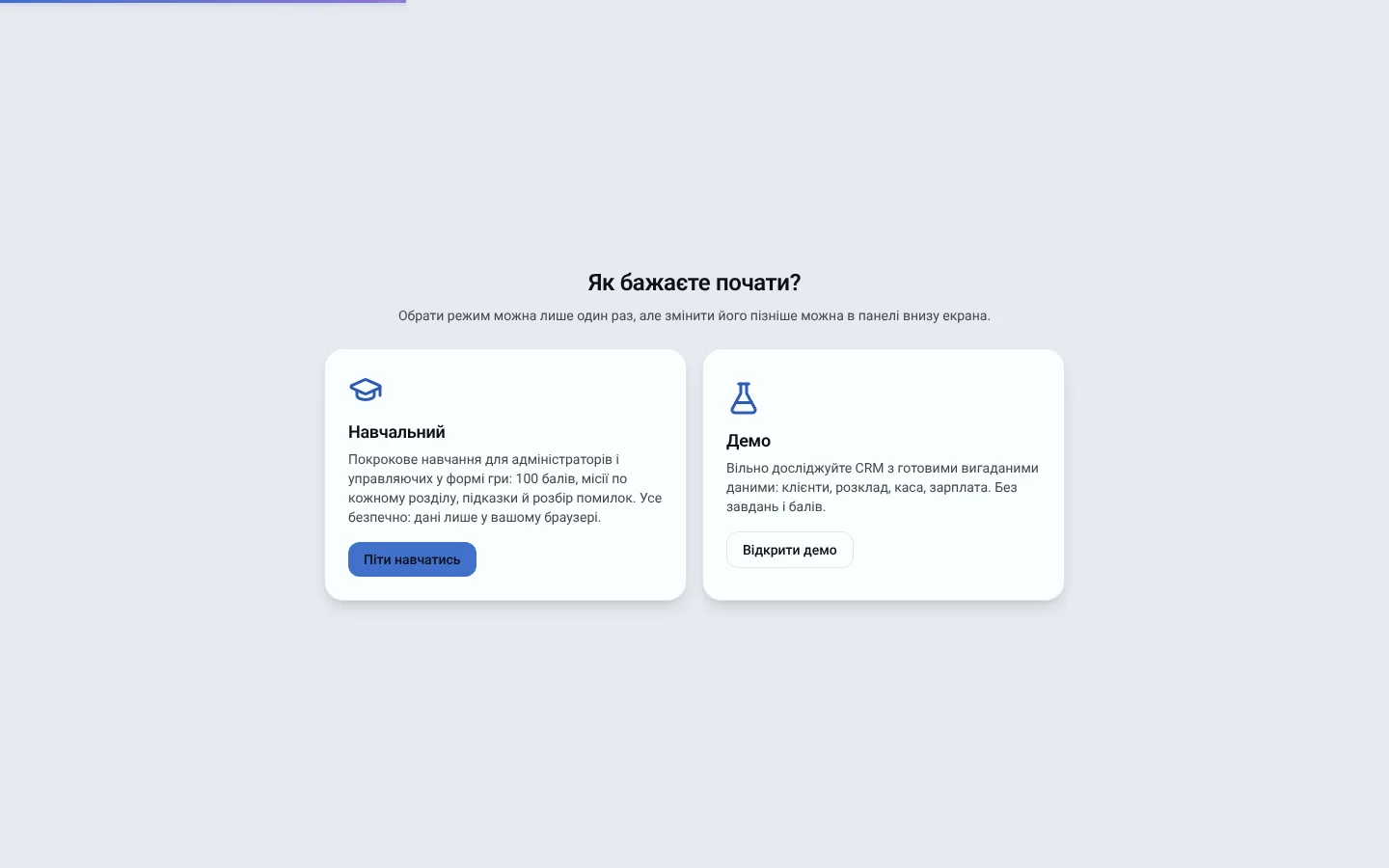
After you sign in to the demo, the CRM asks “How would you like to start?”: choose Training.
- Open the demo on the site and sign in. A screen How would you like to start? («Як бажаєте почати?») appears with two cards.
- Press the Training («Навчальний») card (the Go and learn button). The system opens a separate clean database.
- Choose your role in the window Who are you on the team?. You can change the role at any time, and your progress is kept.
- Press the Training pill at the bottom of the screen. The list of missions for your role opens.
If you are already in the ordinary demo, the bottom banner has a Training button. From the training panel, the To the ordinary demo button takes you back. The browser remembers the mode choice and the training progress separately, so resetting the demo does not erase them.
Six roles, 100 points each
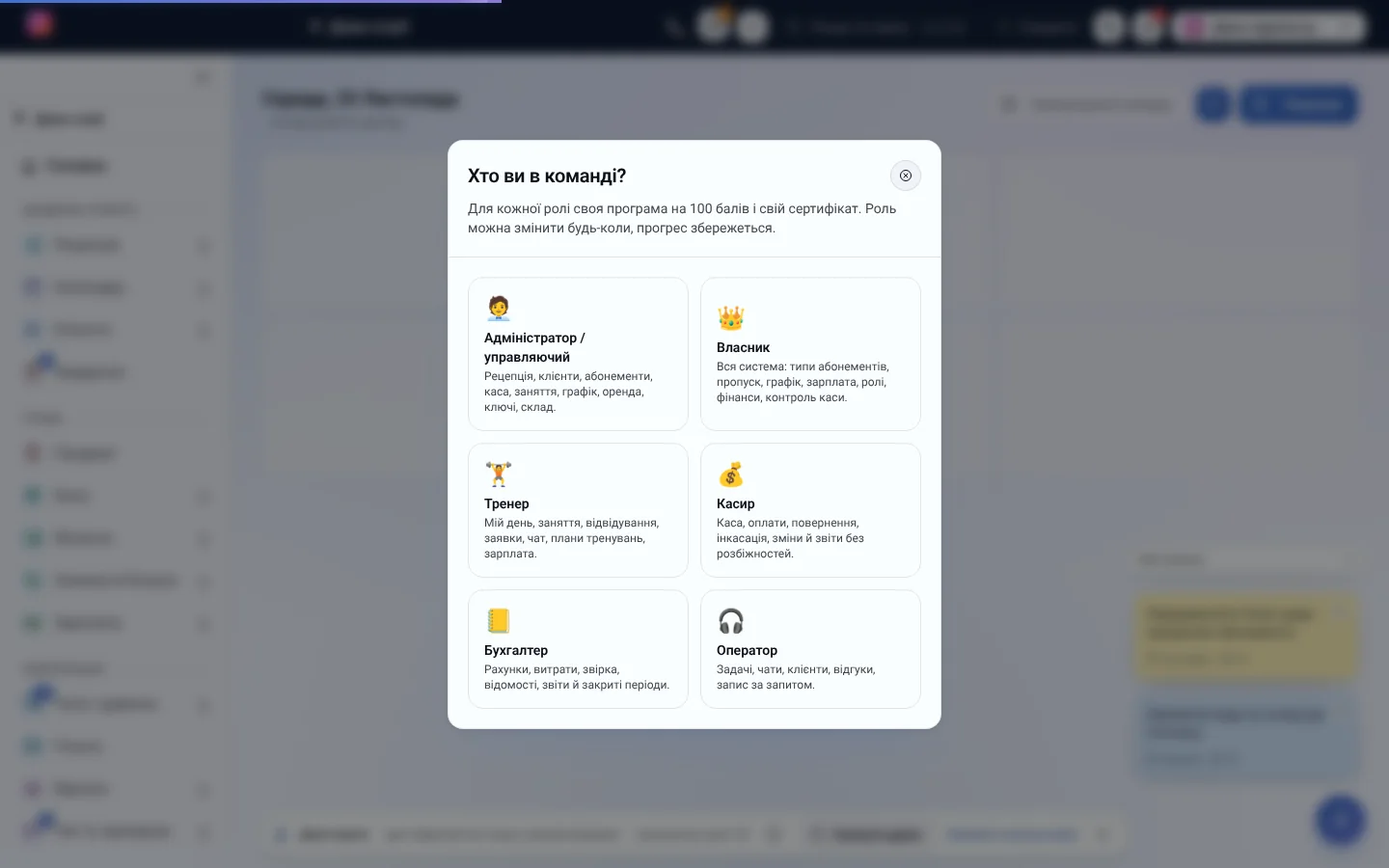
Every role has its own 100-point programme and its own certificate.
| Role | Missions | What the programme covers |
|---|---|---|
| Administrator / manager | 17 | Till, sales, clients and memberships, debts, booking and attendance, schedule, rentals, keys, stock |
| Owner | 46 | Membership types, access, catalogue, schedule, payroll, roles and rights, finance, till control |
| Trainer | 15 | My day, classes, attendance, requests, chat, training plans, payroll |
| Cashier | 21 | Till, payments, refunds, cash collection, shifts and reports without discrepancies (16 own and 5 shared with the administrator) |
| Accountant | 19 | Invoices, expenses, reconciliation, statements, reports and closed periods |
| Operator | 16 | Tasks, chats, clients, reviews, booking on request |
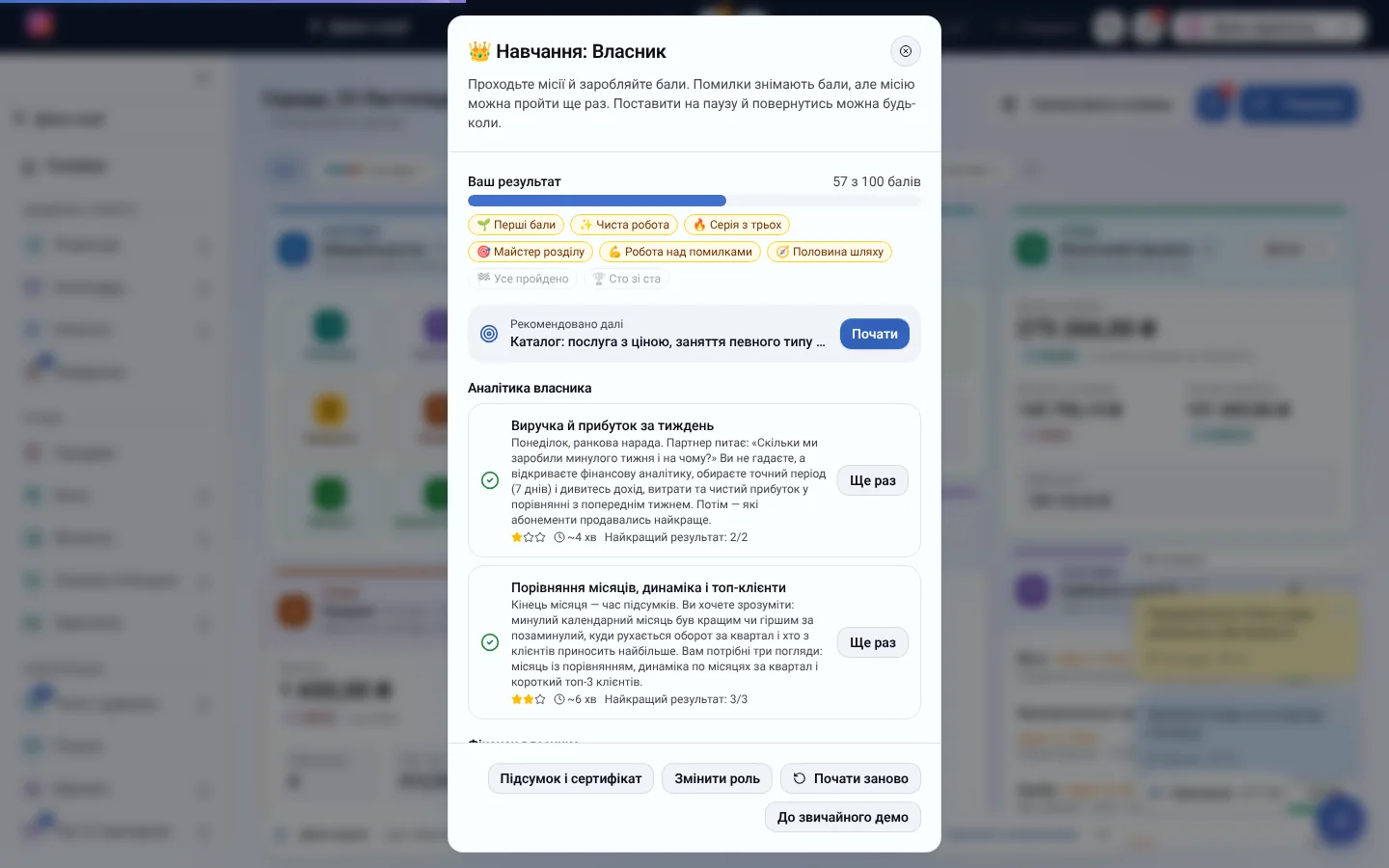
The owner's programme is the largest: 46 missions by section.
How to go through the missions
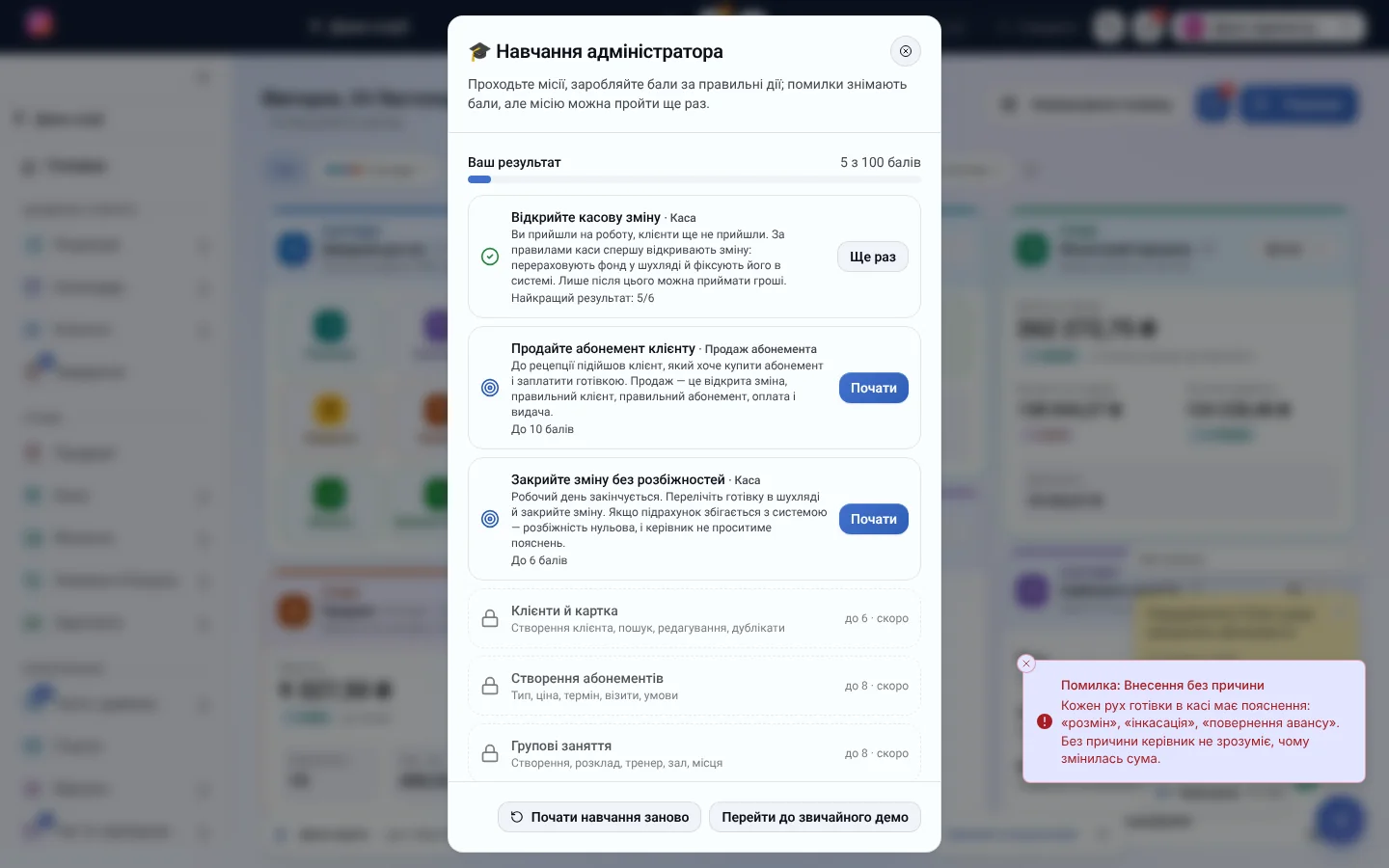
The mission list: difficulty stars, time, best result and the Start button.
Each mission has a title, a short story, a difficulty level, an approximate time in minutes and a maximum number of points. At the top of the list is a block Recommended next, and the buttons in the rows are called Start, Continue or Again.
- Press Start. The system prepares the scene: for example, it closes open shifts and picks a client with a membership. A note in the mission card explains what has been prepared.
- Work in the ordinary CRM interface. The mission card shows the steps with points, a "how to do it" hint and a button that jumps to the right section.
- Steps are counted in order, when a result appears in the data: a new sale, an open shift, a created booking. Pressing buttons alone earns no points.
- After the last step a window with the mission summary opens. The green heading "Mission completed clean!" means there were no mistakes, and a burst of confetti adds to the mood.
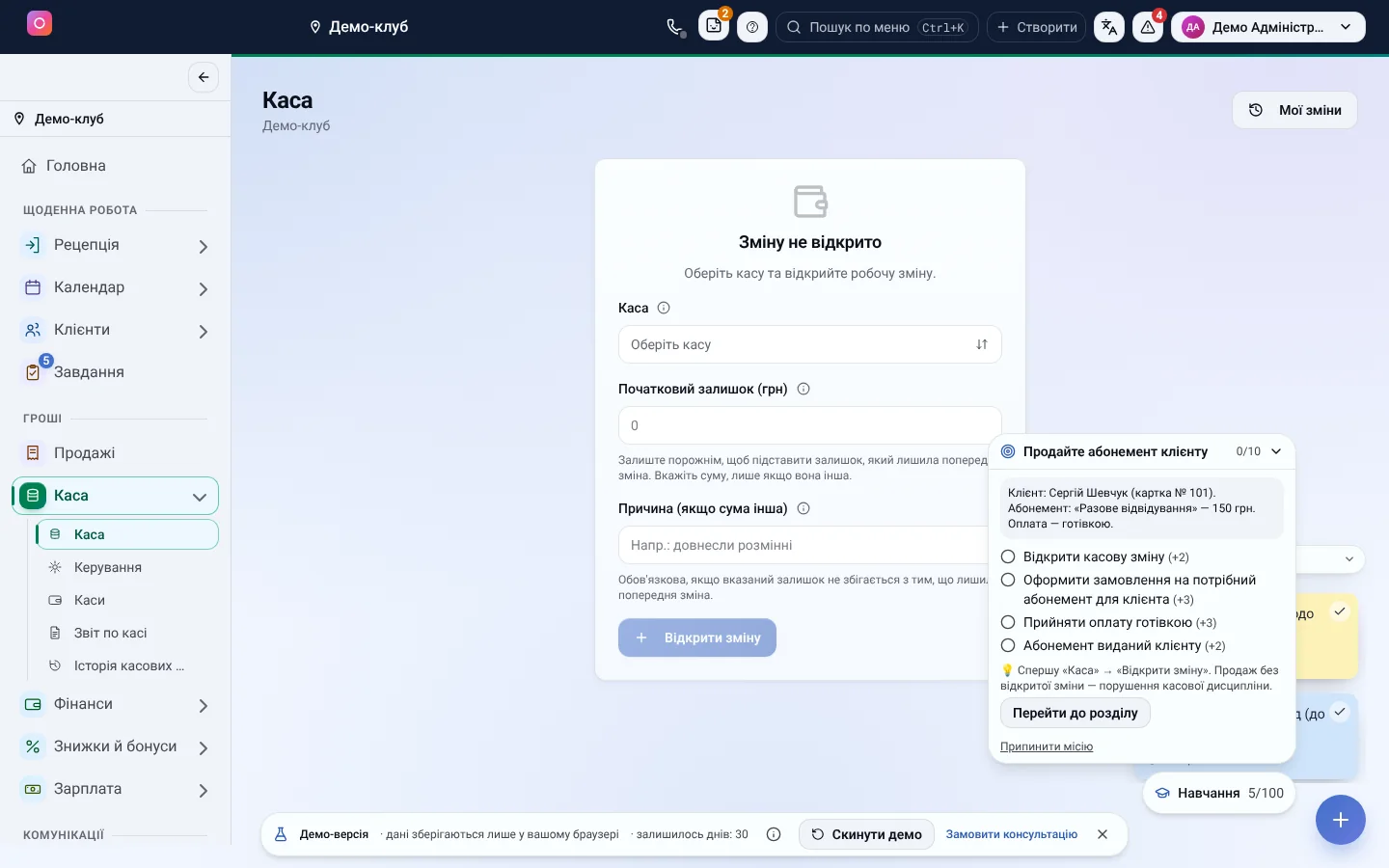
The active mission card: steps, points and the Pause button.
Points and penalties
The result of an attempt is the points for completed steps minus the penalties for mistakes, but never below zero. The penalty for one mistake is from 1 to 4 points and is taken once per attempt, even if you repeat the same mistake. When a mistake happens, a notification "Mistake: …" appears with an explanation of why it is bad and what is right.
You can take a mission again with the Again button. The best result counts, and the sum of the best results across the role's missions gives your points out of one hundred.
Pause and resume
The Pause button in the mission card stops the checking: no points are awarded and no mistakes are counted. The state of the scene and your progress are kept, including after a page reload. A pause icon appears beside the Training pill, and in the list the mission carries the mark "on pause". Press Continue to return.
Badges
Eight badges are calculated from your progress: "First points", "Clean work" (a mission without mistakes), "Streak of three", "Section master" (all missions of a section at the maximum), "Working on mistakes" (a repeat attempt with an improved result), "Halfway" (50 points), "Everything completed" and "A hundred out of a hundred".
Summary and certificate
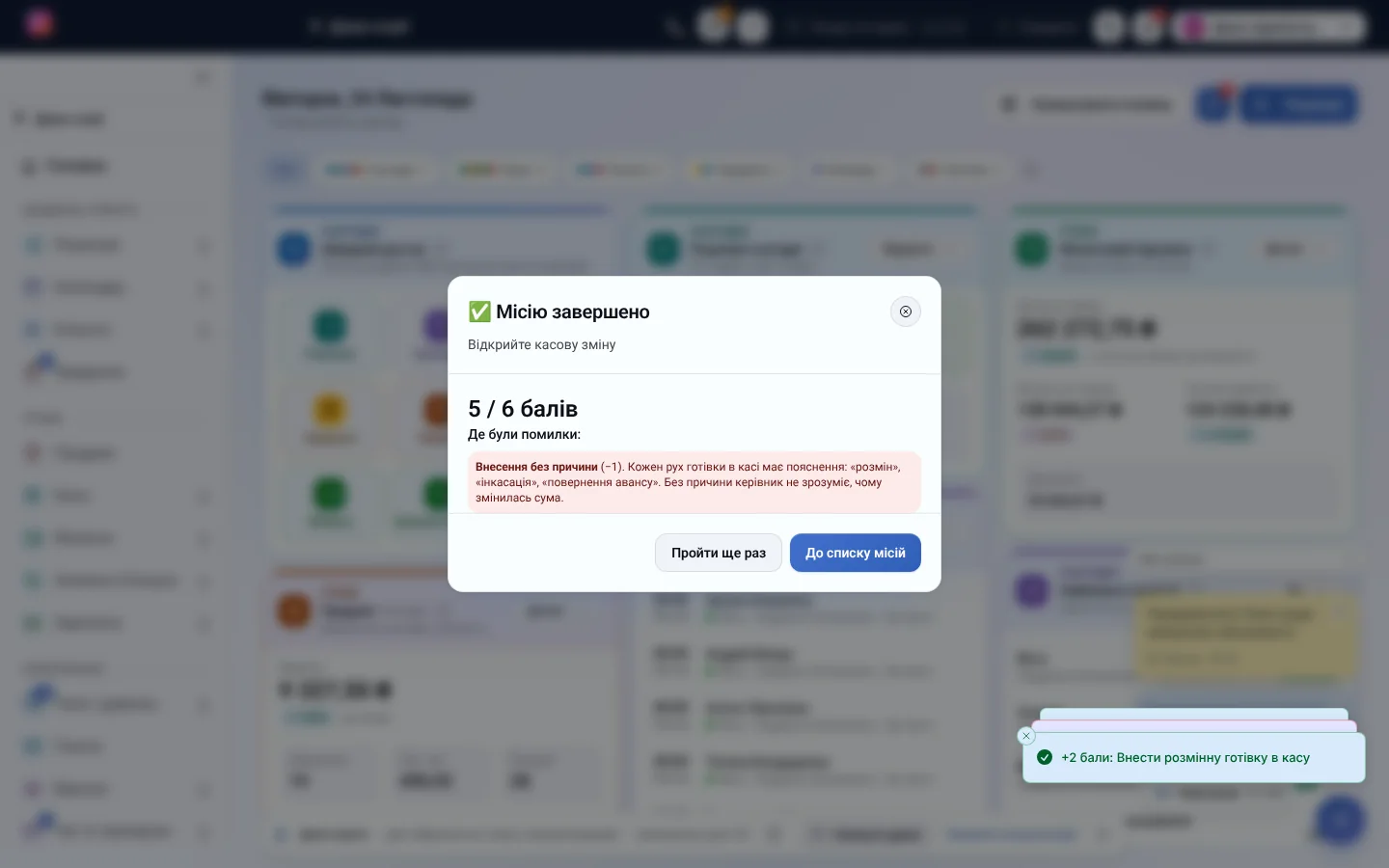
The summary: points, level, badges and a breakdown of mistakes by section.
The Summary and certificate button in the mission list opens an overview: points out of a hundred, a level ("Beginner", "Practitioner", "Confident administrator" from 70 points, "Master of the gym" from 90), badges and the result by section with the list of mistakes made.
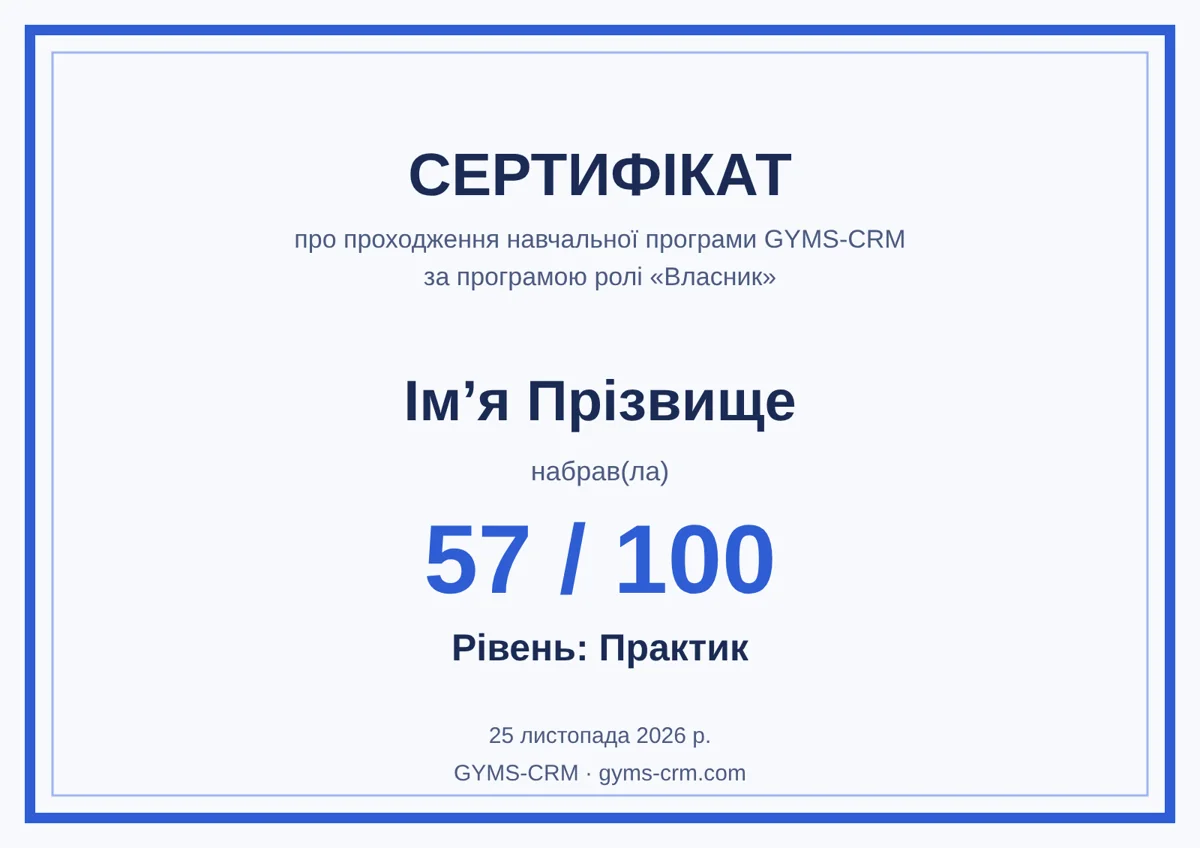
The certificate is generated in your browser and downloaded as a PNG file.
- Type your first and last name into the field Your first and last name. Without a name the certificate says "Training participant".
- Press the download button. The browser saves a PNG file that shows the role, the points, the level and the date.
The certificate is created in your browser and is not sent anywhere.
The invitation in the ordinary demo
If you opened the ordinary demo and have not trained yet, about a second and a half later a window "Complete the training in 15 minutes" appears. It has three buttons: Go and learn, Later (the window returns no sooner than after a day) and Do not offer. The invitation does not touch your demo data.
Known limits of the demo
- There is no waiting list, no overdue locker return, no closed reporting periods and no report export.
- Paying for a rental equals confirming the booking, and selling a certificate is forbidden in the demo.
- Outgoing calls and messengers are simulated: the operator learns from the log, tasks, reminders, reviews and the 24-hour WhatsApp window.
- Trainer missions have no "Start the class" step: the class status is set by time.
Resetting the training
The Start over button erases the points of all roles and the data of the training database. The ordinary demo is not affected. If something did not work, write to support on Telegram or leave a request on this page.
Frequently asked questions
Can I damage a club's real data?
No. The training mode runs in your browser on invented data in a separate database, which does not mix with the ordinary demo.
How many points can I earn?
Each role's programme equals 100 points. Points for a mission depend on the number of completed steps, and the penalty for a mistake is from 1 to 4 points.
Can I take a mission again?
Yes. The Again button restarts the mission, and the best result across all attempts counts.
What happens if I reload the page in the middle of a mission?
Your progress and the state of the scene are kept in the browser. A mission on pause stays on pause, and an active one continues.
Where do I get the certificate?
In the mission list press Summary and certificate, type your name and download the PNG. Each role has its own certificate.
Can I switch off the training invitation?
Yes, the Do not offer button in the invitation window switches it off for this browser.
Keep reading
- Training in the CRM: guided tours for employees
- Training builder: tours, roles and report for the owner
- How to create a role in the CRM: staff access rights
- Business setup wizard: system rules and CRM sections
- Staff and payroll in the CRM: roles, schedules, timesheetStaff in GYMS-CRM: profiles, roles and rights, schedules and timesheets, shift reports, a payroll builder with 13 formulas, drafts, statements and tasks.
- Trainer app: a working day without a paper registerA trainer's day in the club app: start and finish classes, mark no-shows, answer personal requests, see clients. What works now and a sample daily routine.
- Trainer pay: formulas, tiers and the payroll statementHow to set up trainer payroll in a CRM: per-class rates, tiers by headcount, percentage of revenue, salary and guaranteed minimum, draft, approval, payout.
- How to calculate trainer pay: percentage, rate, mixedFour trainer pay schemes: percentage of revenue, rate per class, hourly and mixed with a guarantee. Worked examples, mistakes and automating the monthly count.